Download
If you just want the keyboard layout and don’t want to bother to read this post, here’s the download link.
My dad finally is using Windows 7. He’s very happy with the new OS but he had a huge complain. He wasn’t able to type Russian.
Of course Windows 7 has standard Russian keyboard layouts that looks like this:

If you not familiar with this layout, you’ll need to put stickers on every key to know where each letter is. What my dad needed is a phonetic Russian keyboard where Russian letters correspond more or less to English ones. For some reason I couldn’t find a free phonetic Russian keyboard layout that will work nice on Windows 7.
In my search I got across the Microsoft Keyboard Layout Creator. I was surprised how easy to create your own layout with this tool. It’s a little bit tedious but very easy.
This is the keyboard that my dad and I are currently using:
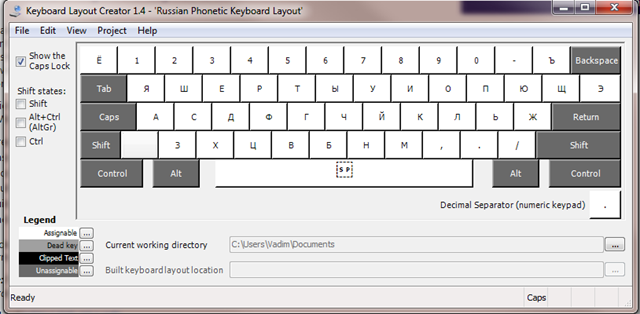
If you are in need of free Phonetic Russian Keyboard, feel free to Download it.
Instruction to download and install Phonetic Russian Keyboard:
- Download Ru_PhoneticLayout.zip file from here.
- Unzip the file to any temporary directory of your choosing
- Double click on setup.exe. If your UAC is enable, you will need click on Yes button to allow the application to be installed.
Installation should be very fast. When it’s done, you should see following dialog:

It should work with any current version of your Windows OS. I tested it on Windows XP 32-bit, Vista 64-bit, Windows 7 32-bit and 64-bit.
Now you can start typing Russian. To switch between languages you can use Alt + Shift keys on your keyboard or click on the language letters in your task bar and select the language you want.

You need to realize when you change a language you change it only for application that currently is active. For example let assume that you have two application open: MS Word and FireFox. If you switch to Russian when FireFox has focus, you will be able to type Russian only in FireFox, in MS Word you still will type English.
In case you are not happy with this keyboard layout, you can easily remove it like you would uninstall any Windows application form Uninstall or change program window.

 Vadim's Weblog
I’ve tried such kind of phonetic layout, but found it too awkward cause of some mismatched letters (“Q” -> “Я”, etc). So i prefer to bind such letters to paired russian + AltGr. E.g: “Я” -> “A” + AltGr, “Ю” -> “U” + AltGr, “Ш” -> “S” + AltGr, “Ж” -> “Z” + AltGr, etc.
I agree with you that it’s impossible to map one to one each letter. Plus Cyrillic alphabet has more letters. Using Microsoft Keyboard Layout Creator you can create an layout that most scenes to you.
Like in the standard Russian keyboard layout. On key “4” and “6”
morhetz, Excellent idea!!!
I,ll use it Thank you very much
Nice one!!! Thanks.
Where is such signs like :,;,” and etc?
Boris, you’d have to switch to English in order to type ;:”‘ characters. I always open to suggestions. Tell me where would you put these characters on Russian layout?
I put the ; and : as shift plus comma and shift plus period. No one needs the symbols.
Thank you so much for this! I’m a Peace Corps volunteer in Kazakhstan, just bought a new computer, and I was dying hunting and pecking the Russian standard layout. You made my life a little easier.
Vadim, Thanks a bunch!!!
O
I’m glad that you found it useful.
thanx mate, really helped and was looking for it for a long while! appreciate!
Just installed it and does not work – I go into MS Word and types like it used to. Can you tell me why?
Thanks.
Did you switch to Russian keyboard layout? In your task bar you should see letters for your current language (For English it’s ‘EN’). You can click on two letters abbreviation and switch to ‘RU’ for Russian. You also can try by pressing Alt-Shift on your keyboard to toggle between two or more languages (in case you have more than two languages installed).
Hope it helps.
I guess I was not clear – I installed and when I switch, it types russian letters, but not phonetically according to your layout.
I got it to work – when I was pressing alt-shift, it was switching to Ru layout, but when I actually clicked on settings, Ru phonetic was there as an option that I switched to. works great. Thank you
Glad it works for you.
Hello! I have a good news. The phonetic russian keyboard now are available in iPhones and iPod touch. It is realy great supplement if you want to write russian with standart englich keyboard.
Agne, could you please provide more details?
Yes, of course. What would you like to know?
I wanted Agne to tell us where a user of an iPhone or iPod can get phonetic Russian keyboard layout, how to make it work there, who (and may be shortly how) made phonetic Russian for those devices.
I guess Agne was thinking about http://apps.isimpleness.com/translit/
I’m using couple days, it’s nice App to write phonetic in russian.
Take care, John
Yes! I was talking about this App. It’s realy good.
Классно! Я изпользую твою програму что бы напечатать это!
I am used to write Russian using translit.ru. Its distinguishing feature is that one can use two-letter combinations; say, “SH” for “Ш” etc. Is this possibe using the Microsoft Keyboard Layout Creator? Any programs known which would allow this?
yes is possible to do this in MKLC, this feature is called Dead Keys, and you can do eg “SH” for “Ш” , and also I use for a long time a small program called Letter Zu. Try it ;)
Дорогой Вадим: This keyboard is perfect, большое вам спасибо!! There are some phonetic layouts that I don’t like as well – this layout is what I had on my old computer. I was dreading getting the new one set up – until I saw your weblog.
I just installed it and it works,thanks!
You also can use http://www.softcorporation.com/products/cyrillic/ It has Phonetic layout and no need to install any program at all.
thanks…sposibo vadim!
Thank you Vadim, great job! Very useful app!
спасибо
Worked as soon as i installed it all i had to do is change from EN to RU in the task bar, Thank you very much.
Спасибо! Очень чорошо!
Hi Вадим,
thanks a lot for this program, now I can type phonetically in my favorite language, Наконец-то!
how do you spell “life” in Russian? the letter “Zh” for zhizn’????
It’s ‘Ж’. Жизнь. On this phonetic keyboard it’s a key for single / double quote (‘) / (“).
Thank you. I have been in need of a phonetic keyboard for so long!!! <3!!!! Спасибо большое!!!
Thanks a lot. I am learning Russian language and this keyboard is great. Must have.
Спасибо!
Thank you so much. I’m making a very painful transition for Mac to Windows. You really helped my out
The download link to Ru_PhoneticLayout.zip does not work anymore. It would be great to have this program available.
Thanks
The download link is fixed.
Not sure what is going on.. I have a windows 2010 version on my computer. I had a phonetic keyboard installed on my older windows version and now whatever I do, I get a message that I do not have access to this file when I am trying to download it. Something is messing with the proccess. I have a regular Russian keyboard installed now, but I need phonetic as the letters on my physical keyboard correspond to the phonetic one… need this sorted really bad..
Kristina, I assume that by Windows 2010 you mean Windows 7. Phonetic keyboard works just fine on Windows 7. I store the installation files on my google drive and I just ask some one test it for me and it worked fine for that person.
It’s probably confusing because the download page shows you a lot of file. Try to follow these steps exactly:
1. Press on download link.
2. Select ‘File’ from the menu above and then click on ‘Download’ option. You also can simply press Ctrl+S on your keyboard.
3. After Russian Phonetic Keyboard.zip is downloaded, unzip the file and run setup.exe.
4. Follow instructions on the screen.
Good luck
Dear Vadim, thanks for your response. Yes, Windos 7, correct. The thing is, the steps are quite straightfoward. The zip will not download. It gets stuck right before it starts downloading the actual zip.
I guess there might be something that is blocking it on my computer. I will have to talk our IT team at the company.
Thanks so much for your response though!
Dear Vadim,
what should I do to create from the File in Windows 8.
Svetlana,
I don’t understand you question. What are you trying to do?
Vadim, any chances to have Windows 8 version?
Thanks
Vargant, I’m still on Windows 7. I run Windows 8 only on my VM image. I think it’s the time to upgrade to Win 8. I’ll try to find time to create Win 8 version.
People reported that layouts made with MSKLC 1.4 work just fine under Windows 8, that is your layout can be normally installed by running its setup.exe under Windows 8.
The only thing that will not work (but it’s not related to typing) is a “Preview” –
like one in Windows 7 Control Panel when you place a cursor on your layout and click on “Properties”, you’d see an image of the layout. This does not work in Windows 8 for such custom made layouts.
Hello Vadim, did you create that phonetic keyboard for windows 8, I have windows surface RT tablet, is possible to downloads there. Thank you.
Thanks a lot!!! exactly the layout that I wanted , it is the same as in my phoenetic keyboard in my macintosh :))))
Vadim, as today’s comment says, ” it is the same as in my phonetic keyboard in my macintosh”
I always wanted to learn what Mac has exactly as Russian phonetic and because your layout’s image above does not show the symbols above the digits (when Shift is pressed), I decided to install your layout and see what the symbols are above the digits when the mode is “RU” assuming that Mac has the same assignment
To see the assignment I called Windows 7 on-screen keyboard (Start/Run – osk) or I could’ve just typed that row (could also use “Properties” in Control Panel but it does not show the symbols above the digits)
And realized that the layout is very different from one pictured above on this page, please check!
One pictured on this page is a well-known so called “Student” layout (by AATSEEL) while installed layout
“Russian Phonetic Keyboard Vadim Kreinin”
is different:
– top left is ‘Щ’
– differs after zero
– differs after ‘P’
– differs after ‘L’
Is it a wrong image was captured while in MSKLC 1.4?
I am not knowledgeable with computers. I just got Win7. Your download Google doc page confused me. I am a 63 year old Russian woman, in USA 20 years. Can you tell me which files to download and in what sequence. I need step by step how to download and use the phonetic Keyboard. I thank you in advance for your help.
While still using XP, I was so happy with my fbruss setup. Vadim, you can explain to me in Russian or English. Maybe in English, the steps might be useful to more people. Thanks for the work you did in your design.
Larissa, you can find step-by-step instructions here: http://winrus.com/kbd_r.htm#long
Larissa,
You need to download all the files. I agree with you that it’s not obvious how to download because Google Drive shows files individually when it’s actually just one zip file.
When you are in the Google Doc page just press Ctrl-S or click on “File” menu option in upper top corner and then select “Download”. It should download “Russian Phonetic Keyboard.zip” file.
Hope it helps.
Ne nado izobritat velosiped.Etot alfabet klaviatury uže davno suščestvujet nado ne polenitsia painteresovatsia u sosedej.
How to you create a ж, when you get ‘?
It is super, thank you!!!
Sasha, glad you like it.